
“If you are looking for how to uninstall and clean install your QuickBooks Desktop to fix the glitches?”
Then here is the process of QuickBooks Clean Install Tool that helps you to uninstall and then clean install your software. Mostly everywhere you get the normal uninstall and then reinstall QuickBooks solutions that won’t help. But at very rare places you get the clean install solution. This is because it helps you in fixing the issues genuinely and also automatically renames the folder of older versions of QuickBooks. So that user can install the QuickBooks and it creates all the files and folders newly. This way it is done with the scratch so it fixes many of the errors.
How to Use the QuickBooks Clean Install Tool
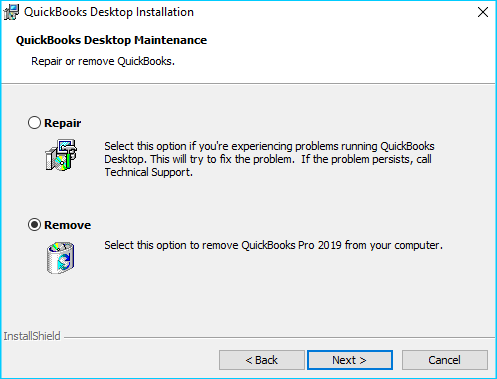
Here are the detailed steps with which you get to know how to use it and also fix the problem into your QuickBooks account. So, you have to follow the steps mentioned here:
Total Time: 30 minutes
Step 1- Check that a Clean Install is Right for You
The clean install solution is right for you when you are not able to fix it using the normal reinstallation of QuickBooks Desktop. Then you have to use the clean install tool to do the whole process and fix the issues or problems you are facing. If you have multiple desktops then you have to perform it on each desktop on which you are facing issues to fix it.
Step 2- Collect all the Information and do Backup your Data
You have to collect all the information and things with you that are required before starting using the QuickBooks clean install tool. So the things are:-
💠 Find the license or product key with yourself that you get in mail if purchased online or if purchased
💠 hardcopy then it is on original package
💠 Download the new installation file that is required for QuickBooks installation
💠 Note down the year and version of the product also
💠 Get the backup of your company data file from previous QuickBooks software before proceeding further.
Also Read: How to Install QuickBooks Tool Hub
To Backup the Company Data File of QuickBooks Desktop the Steps are:-
💠 Open your QuickBooks Desktop software
💠 Then click on the File menu option
💠 Click on the option Switch to single-user mode. If you are already in single user mode then skip this step
💠 Again, click on File menu option
💠 Then select the Backup Company option
💠 After that, click on the option Create Local Backup
💠 You have to select the Local Backup and then click on the Next
💠 Select the option Browse to find the location for saving the backup file
💠 Run the test to make sure that the backup file is in good condition
💠 Click the OK button and move forward
💠 After that, hit on the Save it option and then click the Next to start the backup.
Related article: How to Use QuickBooks Conversion Tool
Step 3- Uninstall the QuickBooks Data
You have to uninstall QuickBooks to clean install it. So the steps are mentioned below for uninstall the software:-
💠 Go to the Start menu
💠 Then search for the Control Panel
💠 Press Enter button, then the Control Panel window opens up
💠 Click on the Programs and again click on the Programs
💠 Now, you see the list of Programs
💠 Select the QuickBooks Desktop application
💠 Then right-click on it, you see a option Uninstall/Change
💠 Click on the option Uninstall/Change
💠 The uninstall Wizard opens up
💠 In this, follow the steps shown in it
💠 So, uninstalling of software is done successfully.
Step 4- Now Download and Install the QuickBooks Tool Hub
To download and install the QuickBooks Tool Hub for using the Clean Install tool; the steps are as follows:-
💠 First of all, Close the QuickBooks software if it is opened
💠 Download the latest version of QuickBooks Tool Hub into your system
💠 Save the file of your tool
💠 Then open the downloaded file by double-clicking on it
💠 After that, you get some on-screen instructions; do follow that
💠 Do agree to the terms and services when shown while installation
💠 When you are done with the installation
💠 Right-click on icon and select Run as Administrator
💠 This opens up the Tool Hub software.
Step 5- You have to Run the QuickBooks Clean install Tool
By running a QuickBooks clean install tool, it automatically changes the name of your old folders. As you have to rename old folders of QuickBooks before reinstalling the QuickBooks software. This helps QuickBooks to easily add new files while installing the software. To run the tool the steps are:-
💠 Go to the QuickBooks Tool Hub
💠 Then select the Installation issues option from various options
💠 Select the clean Install Tool to run
💠 Click on the OK button to proceed further
💠 Now select the QuickBooks version and product version
💠 Then click on the Continue
💠 After that, when the message pops-up on the screen “Please install the copy of QuickBooks to the default 💠 location of computer” then click on the OK button
💠 When the tool finishes its work now you are able to reinstall the QuickBooks desktop software.
Step 6- Reinstall the QuickBooks Desktop
In this, you have to download the QuickBooks Desktop and then reinstall it into your computer. To do this the steps are as follows:-
For Downloading QuickBooks Desktop:
➤ Download the QuickBooks Desktop from good source
➤ Then save the download on the location you want to save
➤ After that, check that the download done successfully.
For Reinstalling QuickBooks Desktop:
➤ Go to the saved location of download
➤ Double-click on the downloaded file
➤ Then the installation wizard opens up
➤ In this follow the instruction and install recommended type
➤ When the installation is successful then you are done with reinstalling QuickBooks Desktop using the clean install tool.
Conclusion:
In conclusion, you get the detailed information for what is and how to perform QuickBooks Clean install tool. So, with this information you can do it on your own and fix the problem.
In case, if you are having any issues or glitches then reach the QuickBooks helpdesk team to get the best assistance. The team is available 365 days a year to help you out via email, live chat, or toll-free number. So don’t worry, just connect with the team and get your problem resolved.

🔔 Frequently Asked Questions
Does this QuickBooks Clean Install Tool Work for all Versions?
No, it won’t work for QuickBooks Desktop 2020 version so you have to rename the folders manually. As the tool does it automatically for other versions.
How Can I Rename Folders Manually if the QuickBooks Clean Install is not Working?
➤ Open File Explorer
➤ Locate the QuickBooks folder that have all the company files or folder of QuickBooks
➤ Then right-click on each file and folder
➤ Add the OLD at the end of each file or folder
➤ You have to follow these steps c and d for all files and folders
➤ After that, you are done and ready to reinstall the software again.
What if my Backup is also Corrupted and I Perform the QuickBooks Clean Install Tool to fix Issues?
In this case first, find the backup that you have done before this backup that is corrupted or damaged. Then restore the backup. Now note that if you took any backup then you have to make the copies of it and store it in different locations. So that if one got damaged then you can use another one.